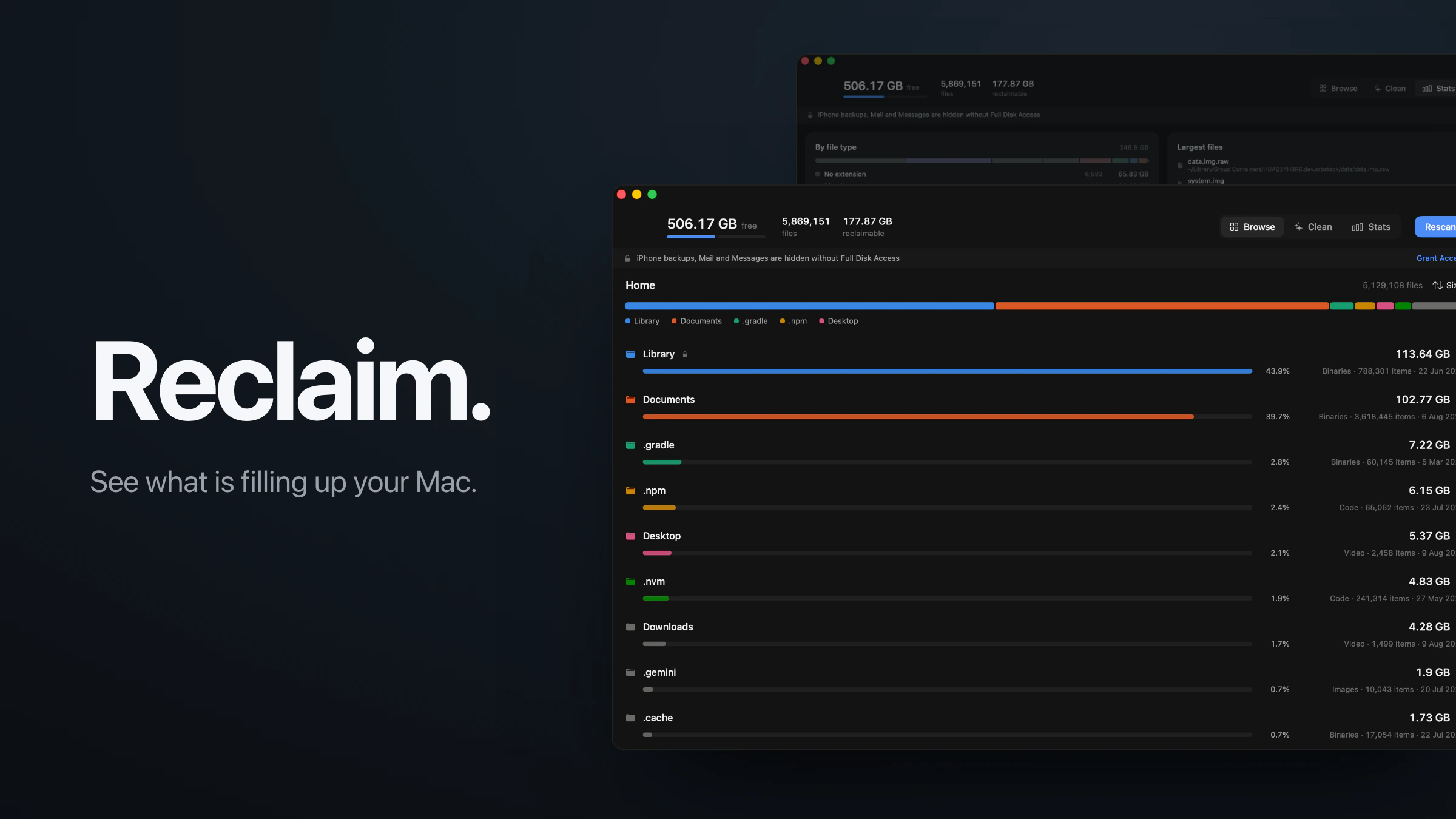
I have a 1TB MacBook and I could never account for where the space went. About a year ago I sat down and went looking by hand. I deleted node_modules folders, cleared Xcode caches, removed simulators I hadn't opened in months, and got back around 100GB. I was pleased with myself.
It didn't last. Over the next few months the space went again, and it got bad enough to change how I worked. I couldn't keep more than three or four projects installed at once, so I'd delete one project's dependencies to make room for another. I'd watch how many apps were open. Everything felt slower. At one point I had to force quit things before a video call with my girlfriend, or take the call on my phone instead.
The tools that answer this question properly are paid, and I had some free time, so I built one with Claude Code. I'm not storing films. Something on this machine was wrong, and I wanted a program that would walk the whole disk and tell me what.
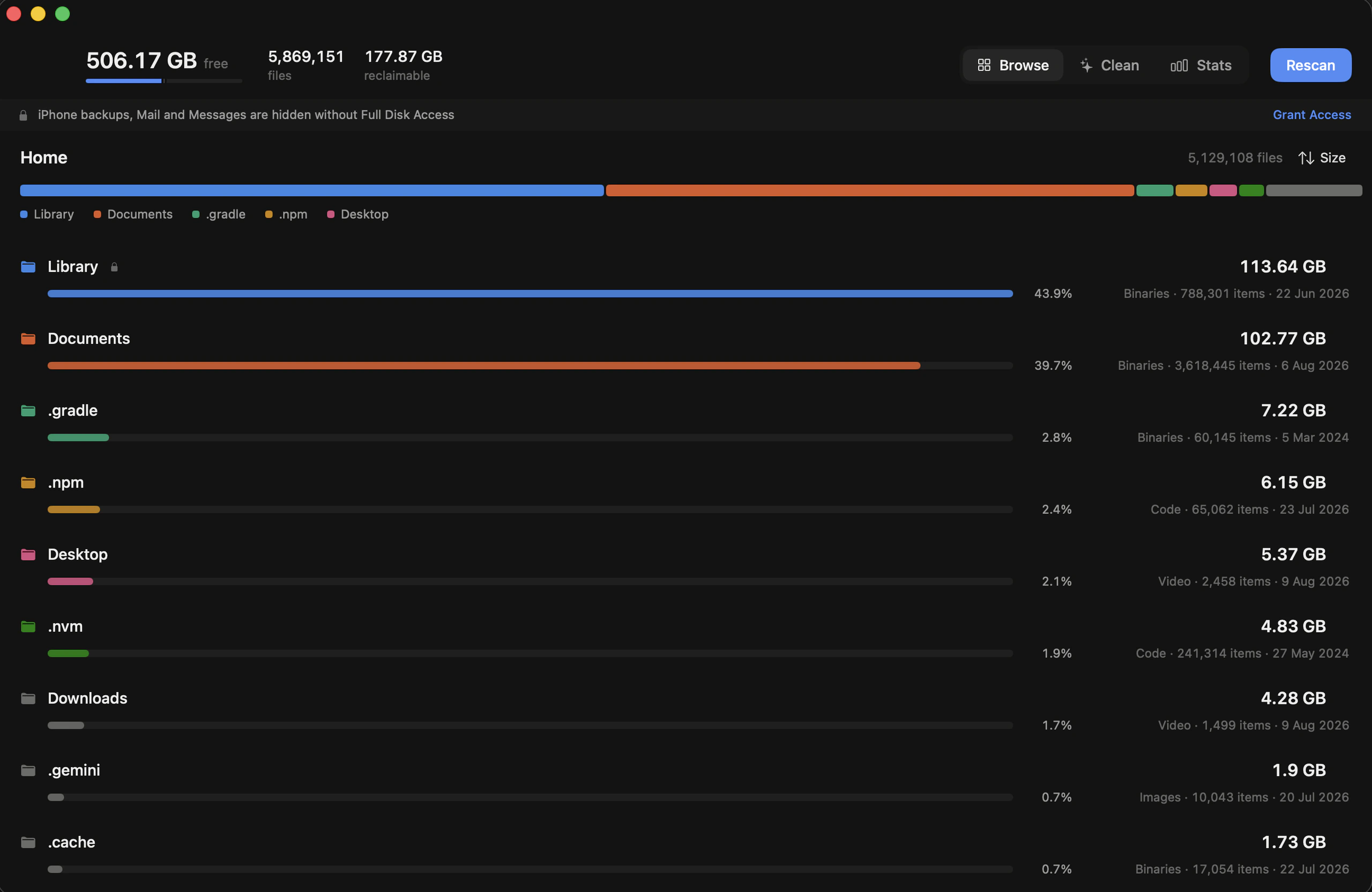
It got me back over 500GB. The biggest single thing was a pm2 log directory that had been recording output from work services since the day I set the laptop up, about two years of it.
Reading the whole disk
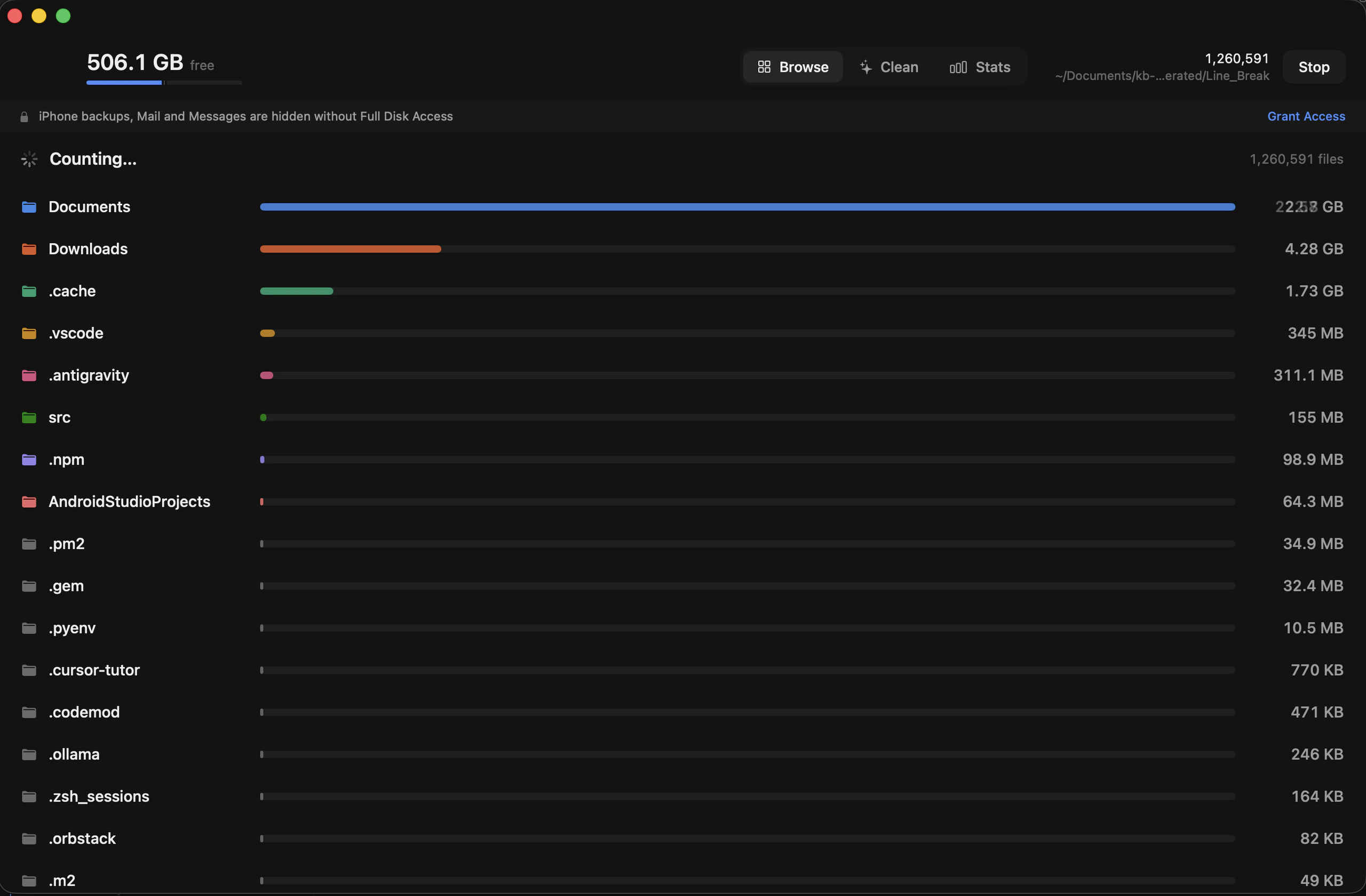
The first problem is speed. There are nearly six million files on my machine, and a tool that takes twenty minutes to tell you anything is a tool you never open.
The usual way to walk a directory is to list it and then call stat on every child, which is one trip into the kernel per file. macOS has a better call for this, getattrlistbulk, which fills a buffer with many entries at once and returns the name, type, size, modification date, link count and inode for all of them together. Reclaim reads into a 256KB buffer, so a folder with a thousand files in it costs a handful of syscalls rather than a thousand.
On top of that it runs one worker per core, minus one, over a shared queue of directories still to visit. Workers take a directory, read it, and push whatever subdirectories they found back onto the queue. The count of active workers is tracked separately from the queue length, because an empty queue with someone still working means wait, while an empty queue with nobody working means the disk is done.
Sizes are added up afterwards, in a single pass, once all the workers have stopped. Totalling as you go would mean every worker fighting for a lock on the same handful of top-level folders.
Together that reads about five million files in roughly thirty seconds.
Counting honestly
Getting a number quickly is easy. Getting one that is actually true took most of the work.
Walking from the root naively counts everything twice, because /System/Volumes/Data is a firmlink that re-exposes the same data volume you are already inside. That one and a handful of synthetic mounts are excluded outright. Symlinks are skipped rather than followed. Other volumes are left alone unless you ask for them.
Hard links are the other way a disk lies to you. The same bytes can appear under many names, and adding them all up gives a total larger than the disk. Reclaim claims each inode the first time it sees it, and any later name for the same file counts as zero.
It also measures allocated size rather than file length. Those differ in both directions: a tiny file still occupies a whole block, and a sparse file can claim terabytes while occupying a few gigabytes.
Files under 1MB aren't kept as individual nodes. They're folded into a count and a byte total on the folder holding them, which keeps memory bounded on a six-million-file disk without changing any reported size.
Finally, some directories can't be read at all. Rather than skipping them quietly, the folders above them are marked as partial, so a total that is too low can say so instead of looking exact.
What macOS hides from you
Two things use space and never show up in a directory walk, no matter how careful the walk is.
The first is purgeable space. macOS reports one number for free space and a larger one for space available if something important needs it. The gap between them is held by caches and snapshots that the system will drop under pressure. No file accounts for it, so Reclaim asks the volume directly rather than trying to find it on disk.
The second is local Time Machine snapshots. These sit on your disk even when no backup drive has been plugged in for months, and nothing in the file system will show them to you. Reclaim lists them through tmutil.
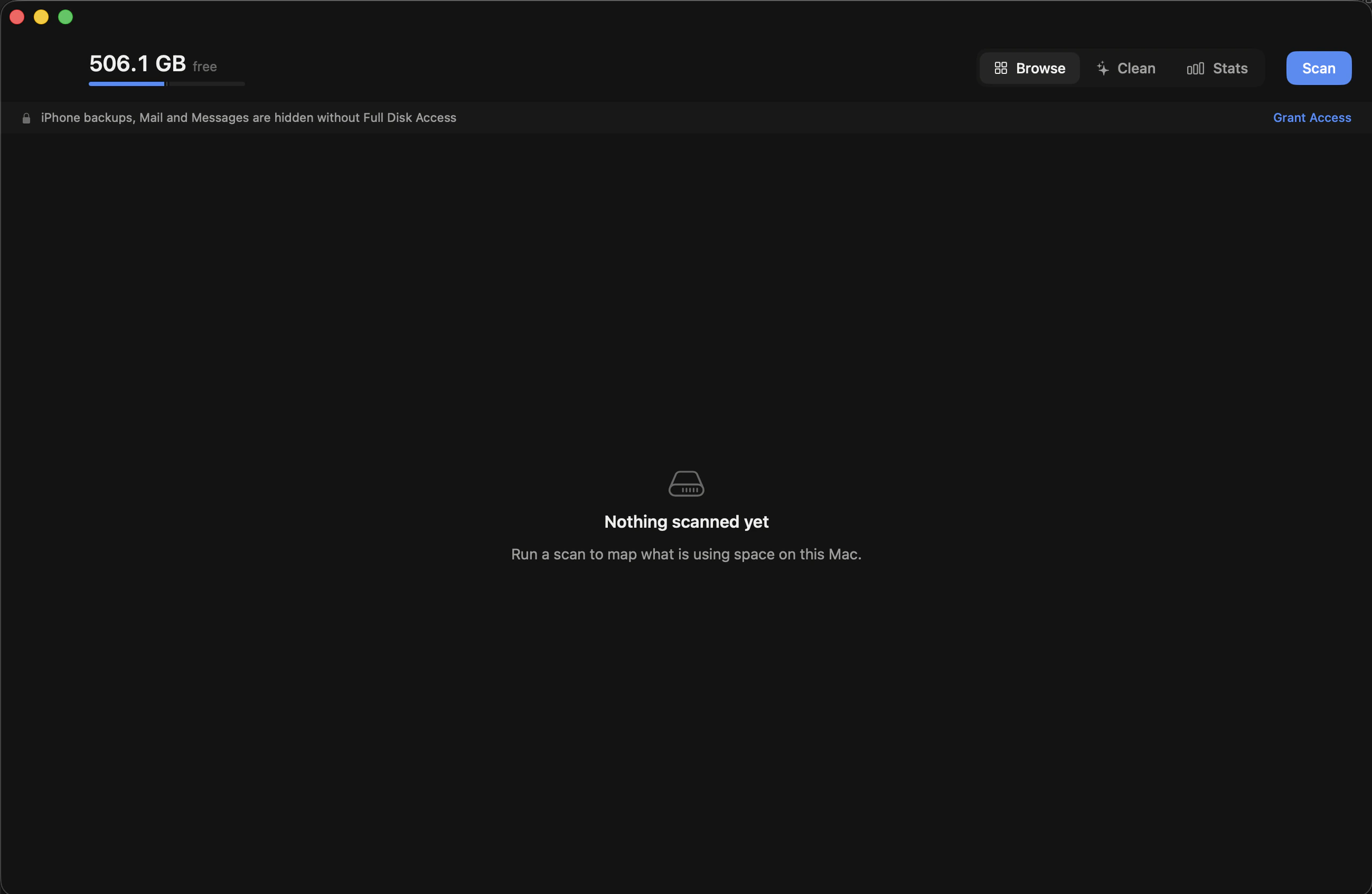
There is also a permissions problem worth mentioning. iPhone backups, Mail and Messages are invisible without Full Disk Access, and the obvious way to detect that, counting how many directories failed to open, does not work: hundreds fail on a healthy Mac regardless. Instead Reclaim tries to read one file that only Full Disk Access can reach, and shows a banner when it can't.
Deciding what is safe
Finding the big folders is only half of it. The question that actually matters is which of them you can delete without regretting it, and that is a question about what each folder is for, not how big it is.
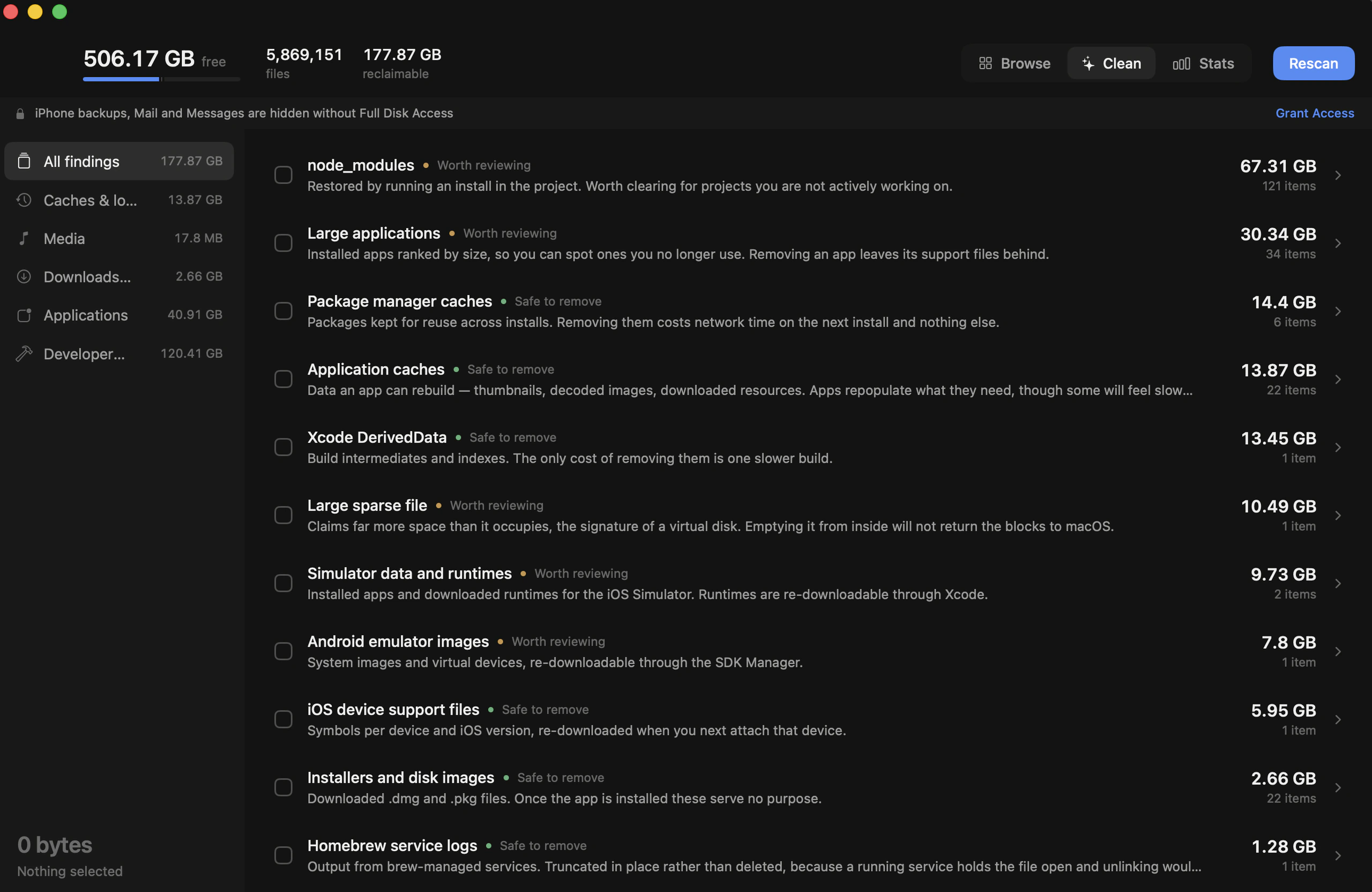
So the second half of the app is a set of twenty-nine rules across eight categories, each one a description of a specific thing that accumulates: Xcode DerivedData, iOS device support files, simulator runtimes, Android system images, package manager caches, downloaded installers, crash reports, sleep images, orphaned app containers.
Every rule carries a confidence and a sentence about what you actually lose. “Safe to remove” means the thing comes back on its own. “Worth reviewing” means it is data you probably still want to look at first. “Only if you're sure” means it is somebody's only copy.
Some paths are never offered whatever the rules say: the system directories, keychains, iCloud Drive, your SSH and GPG keys. Your Documents, Desktop, Pictures, Movies and Music are treated differently again. A specific rule may still match inside them, such as a project's node_modules, but the broad size-based heuristics are not allowed to touch them, because anything they hit there is irreplaceable.
One rule had to be rewritten completely. Finding data left behind by apps you've deleted seemed simple: look through Application Support for folders whose app is gone. In practice it flagged CallHistoryDB, CloudDocs and identityservicesd, which are all parts of macOS. Now it only considers folders named like a bundle identifier, inside the two directories where sandboxed apps actually keep their containers.
Three ways to remove something
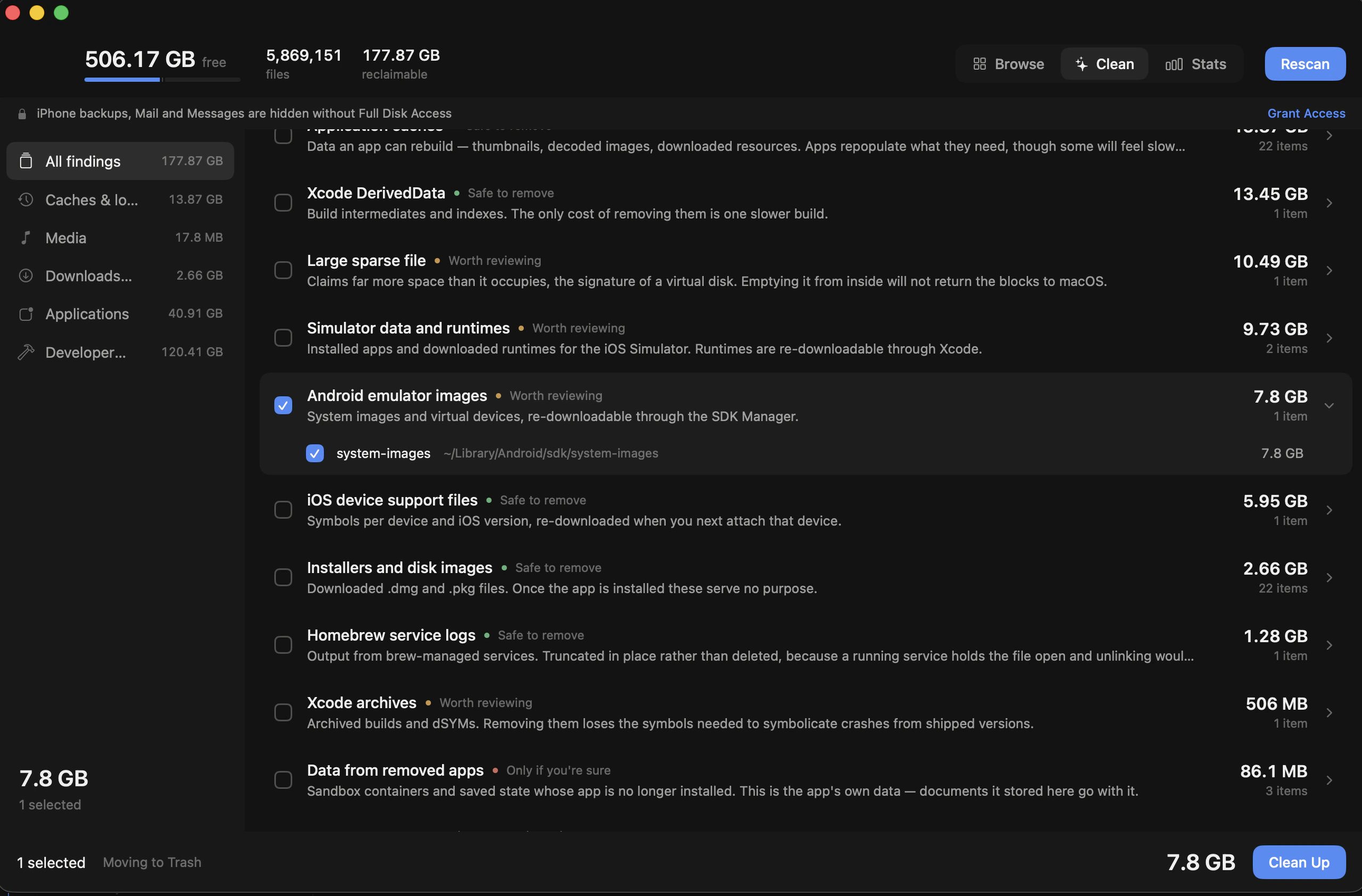
Most things go to the Trash, because that is the one that can be undone.
A few are deleted outright. Anything large enough that moving it to the Trash would leave the volume exactly as full has to be, otherwise the app would report space it hadn't actually freed.
The third case is log files that a running service holds open. Deleting one of those releases nothing, because the process still holds the handle, and the writer carries on at the offset it was already at, so the replacement file starts out just as large. Those are truncated in place instead.
The one that started it
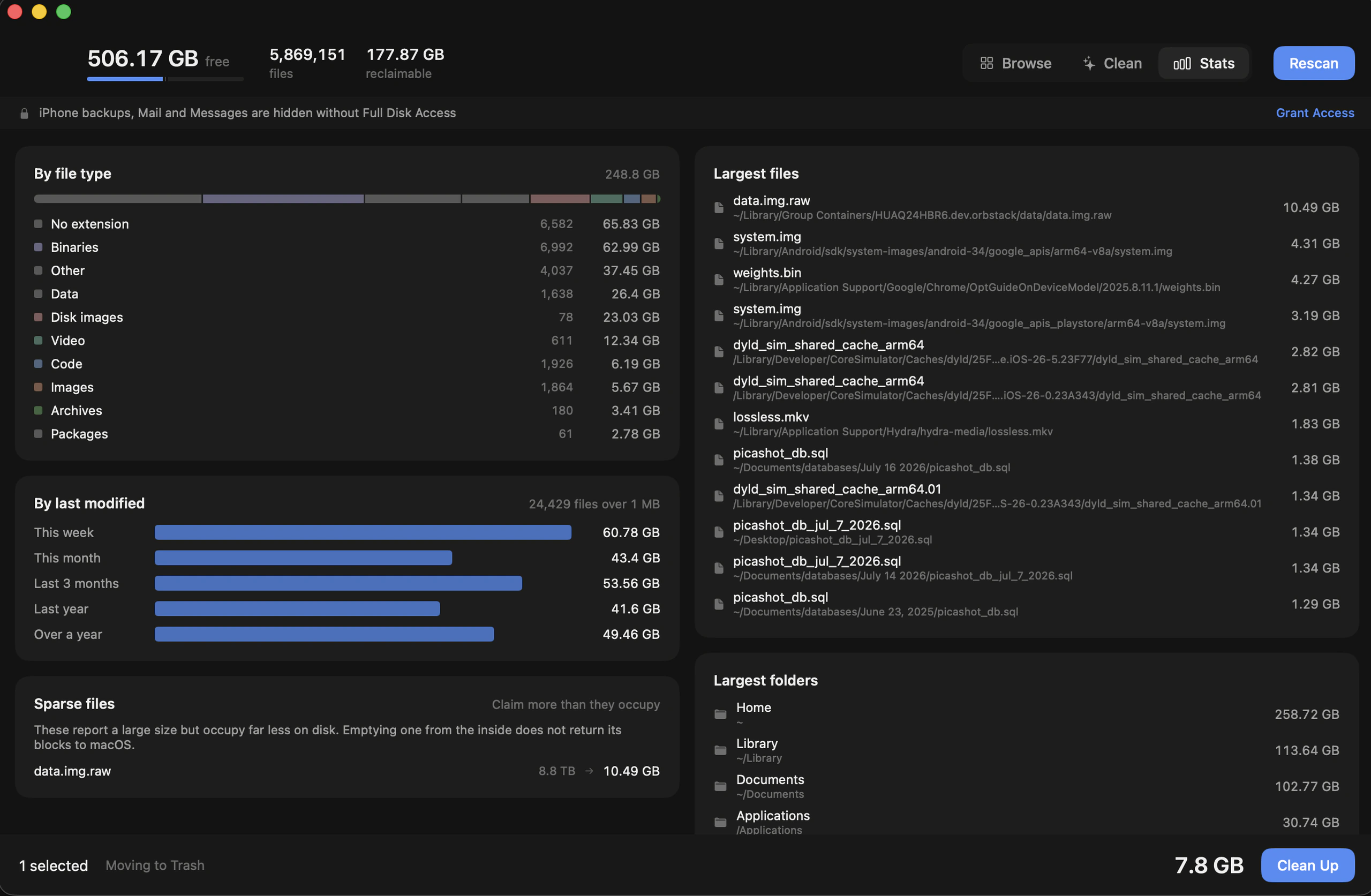
The largest single thing on my disk was a virtual disk image reporting 8.8TB while occupying about 10GB. That is what a sparse file looks like: it claims far more than it holds, and emptying it from the inside doesn't give the blocks back to macOS. Reclaim flags a file as sparse when its allocated size is under half its reported length and the gap is over a gigabyte, and shows both numbers so it's obvious what you are looking at.
The actual culprit was duller and much worse. A pm2 log directory had been collecting stdout and stderr from work services since the day I set the machine up. Nothing rotates those by default, so a service that logs on every request, or crash-loops quietly for a week, just grows the file forever. It had been running for two years.
How it's built
- Swift 6, SwiftUI
- The app
- ReclaimCore
- The engine, as a separate testable package
- TanStack Start
- reclaim.echoeyecodes.com
- GitHub Actions
- Signed, notarised, released as a DMG
Where it is now
Reclaim is free, it runs entirely on your machine, and it doesn't need an account. It asks for Full Disk Access only so it can see the folders macOS hides, and it works without that too, with a banner saying what it can't see.
It's at reclaim.echoeyecodes.com, and the source is on GitHub. If your Mac has been filling up and you don't know why, it is worth thirty seconds to find out.
Screenshots are of the macOS app on my own machine. Requires macOS 14 or later.
Other things I've built

Picashot
A home for in-game photography. The app, the website, the API and Studio, running since 2021 with over 200,000 photos.

Two Steps
Tell it how many steps you want and it plans a loop back to your door out of streets you have not walked yet.

FastChow
A rebuild of the Chowdeck app, focused on making every interaction feel immediate. 28 screens running against the live API.

Klackety
A speed-typing game for iOS and Android that sounds and feels like a mechanical keyboard. Three sound packs, haptics, 60fps.